4. Beyond Manual Annotation
4.1 Generate Pre-annotations Using a Custom Dictionary
Manual annotation is slow. If you already know most of the terms you are looking for, eHOST can go through the corpus first and create annotations for you; annotators then only review, correct and extend them. eHOST calls this NLP Assisted Annotation.
Pre-annotations are ordinary annotations. They can be edited or deleted like anything else, and they are written with the annotator name
eHOST, so machine output is easy to tell apart from human work — including in IAA reports, whereeHOSTshows up as just another annotator.
The NLP Assisted panel
Click NLP Assisted in the toolbar.
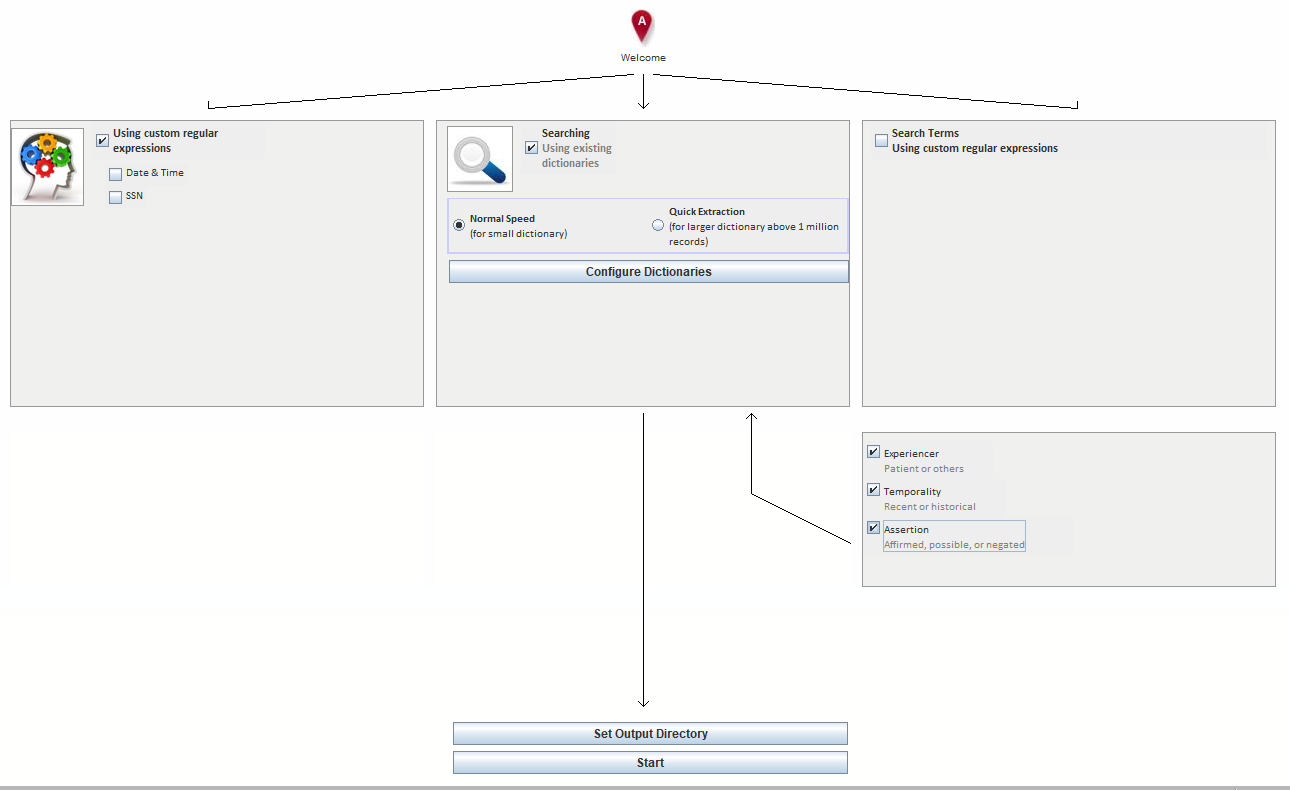
The panel is a small pipeline diagram, read left to right:
| Box | Purpose |
|---|---|
| Using custom regular expressions | Built-in patterns for Date & Time and SSN — see 4.2 |
| Searching / Using existing dictionaries | Dictionary-based term lookup (this page) |
| Search Terms / Using custom regular expressions | Your own patterns from customre.lib — see 4.2 |
| Experiencer / Temporality / Assertion | ConText post-processing of whatever was found — see 4.3 |
| Set Output Directory | Where the generated .knowtator.xml files are written |
| Start | Runs the pipeline over the loaded documents |
Choosing a dictionary
Tick Using existing dictionaries, then click Configure Dictionaries. (The same screen is reachable from the Dictionary Setting toolbar button, under the Concept Dictionaries tab.)
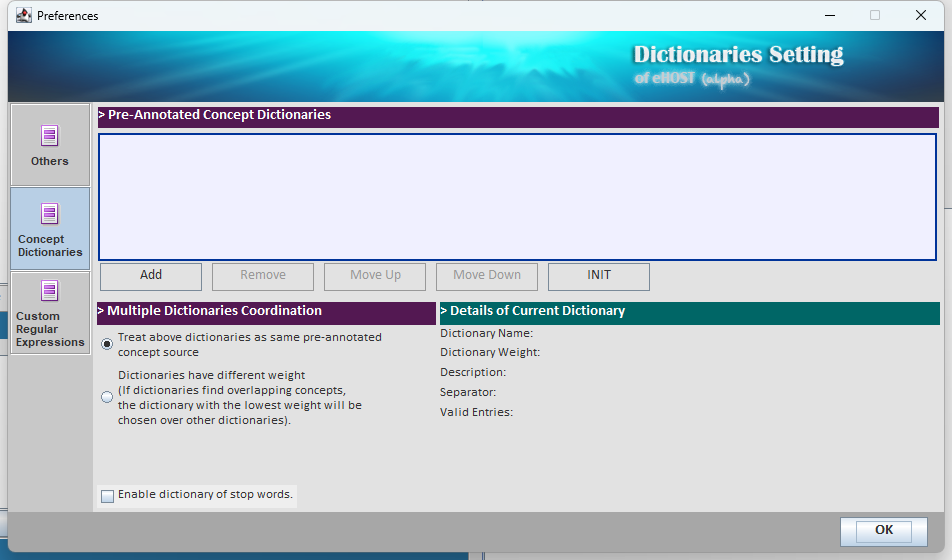
- Add registers a dictionary file. Remove unregisters it — the file itself is not deleted.
- Move Up / Move Down set the order dictionaries are consulted in.
- Details of Current Dictionary shows the name, weight, description, separator and how many valid entries eHOST was able to load. Check Valid Entries after adding a dictionary: if it is 0 or much lower than expected, the separator is probably wrong.
- Multiple Dictionaries Coordination decides what happens when two dictionaries match overlapping
text:
- Treat above dictionaries as same pre-annotated concept source — all dictionaries are equal.
- Dictionaries have different weight — the dictionary with the lowest weight wins.
- Enable dictionary of stop words filters out entries that match the stop-word list
(
phrases_invalid.txt) so that very common phrases do not flood the corpus with annotations.
Dictionary file format
A dictionary is a plain text file with one entry per line and two columns:
<term to look for><separator><class name or comment>
The separator is whatever you configured for that dictionary (a tab, |, ::, and so on) — it just
must not occur inside the terms themselves. For example, with | as the separator:
myocardial infarction|Diagnosis
heart attack|Diagnosis
MI|Diagnosis
Lines whose first column is empty are skipped.
Speed modes
| Mode | Use when | Notes |
|---|---|---|
| Normal Speed | Small to medium dictionaries | Full pipeline; ConText attributes are available |
| Quick Extraction | Dictionaries above roughly 1 million records | Term extraction only — the Experiencer, Temporality and Assertion checkboxes are disabled in this mode |
Running it
- Load the documents you want pre-annotated (see 1.4 Load Documents).
- Tick the sources you want (dictionaries, built-in patterns, custom patterns).
- Optionally tick the ConText attributes.
- Click Set Output Directory and choose where the generated annotation files should go.
- Click Start.
Progress and any load errors are reported in the log panel. When the run finishes, open the project in the Result Editor to review the generated annotations.
Building a dictionary from annotations you already have
The Dictionary Manager toolbar button does the reverse: it reads existing .knowtator.xml
annotation files and writes out a dictionary of the terms that were annotated in them.
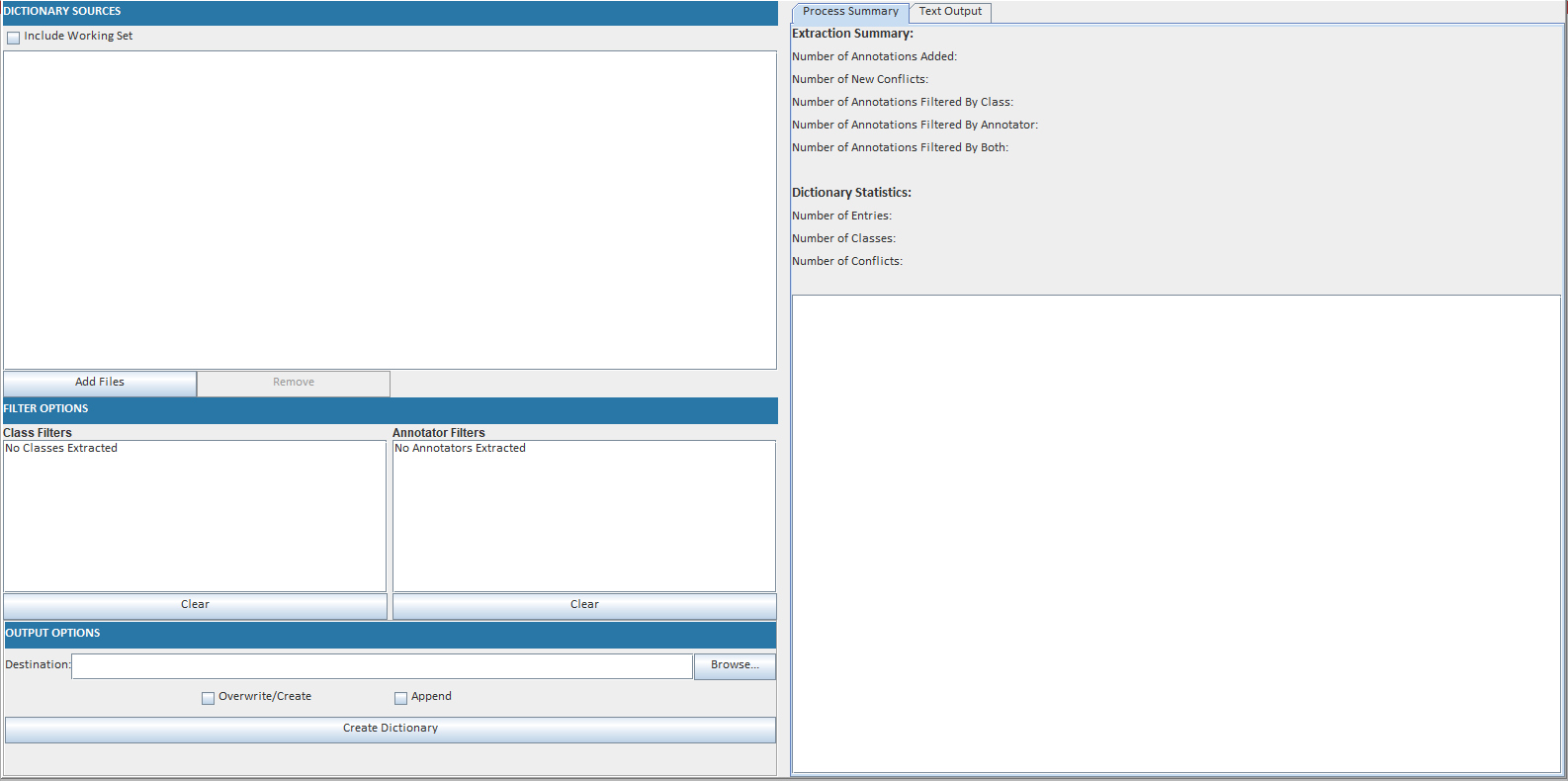
- Add Files — pick the annotation files to harvest, or tick Include Working Set to use the documents currently loaded.
- Filter Options — restrict the harvest to certain classes and/or certain annotators, so you can, for example, build a dictionary only from the adjudicated gold standard.
- Output Options — choose a destination file and whether to Overwrite/Create or Append.
- Create Dictionary.
The Process Summary panel reports how many annotations were added, how many were filtered out, and how many entries, classes and conflicts the resulting dictionary has. A conflict is the same term mapped to two different classes; review those before using the dictionary for pre-annotation.
This makes a useful bootstrap loop: annotate a small sample by hand, harvest a dictionary from it, pre-annotate the rest of the corpus, then correct.