eHOST — Extensible Human Oracle Suite of Tools
eHOST is an open source desktop application for manually annotating text and for turning several annotators’ work into a single, agreed-upon gold standard. It was originally built for clinical and biomedical natural language processing, and it is still used mainly for building reference standards for NLP systems.
This site documents the actively maintained fork at github.com/jianlins/ehost, a rebuilt and extended version of the original eHOST. The current release is 1.39.
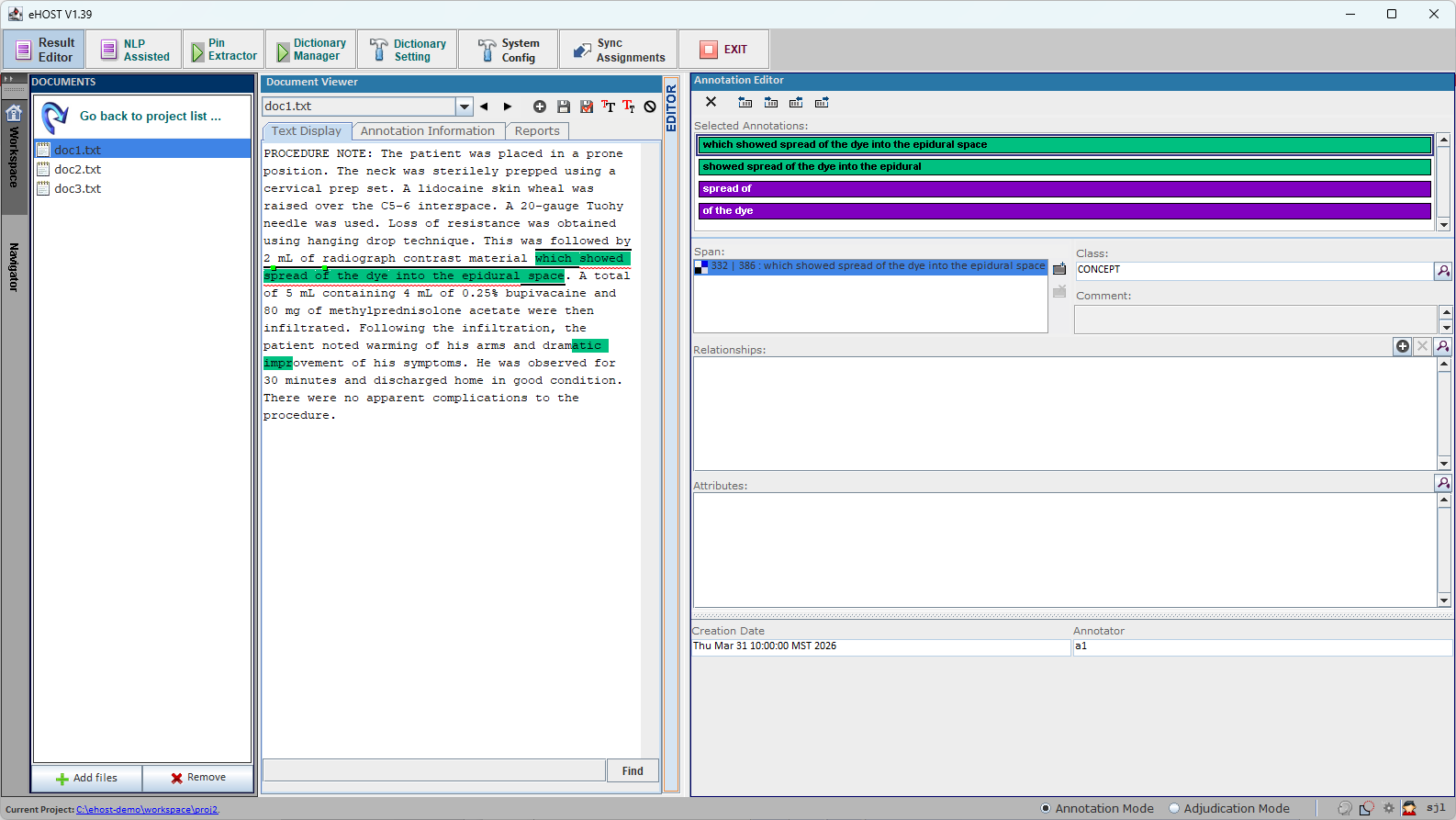
New to eHOST? Start with 1.1 Prerequisites and work through section 1 — it walks you from an empty folder to your first saved annotation.
What eHOST does
| Annotate | Highlight spans of text and assign them a class, attributes (with controlled values), relationships between annotations, and free-text comments. Annotations are stored as Knowtator .knowtator.xml files next to your documents. |
| Organize | Documents live in projects inside a workspace. Each project keeps its own annotation schema, corpus, saved annotations, adjudication data and reports. |
| Review | Filter and curate annotations, generate annotation profiles and position-indicator graphs, run consistency/error checks, and use Oracle mode to find text that looks like what you have already annotated. |
| Measure agreement | Generate IAA (inter-annotator agreement) reports — precision, recall and F-measure per annotator pair, plus drill-down pages listing exactly which annotations matched and which did not. |
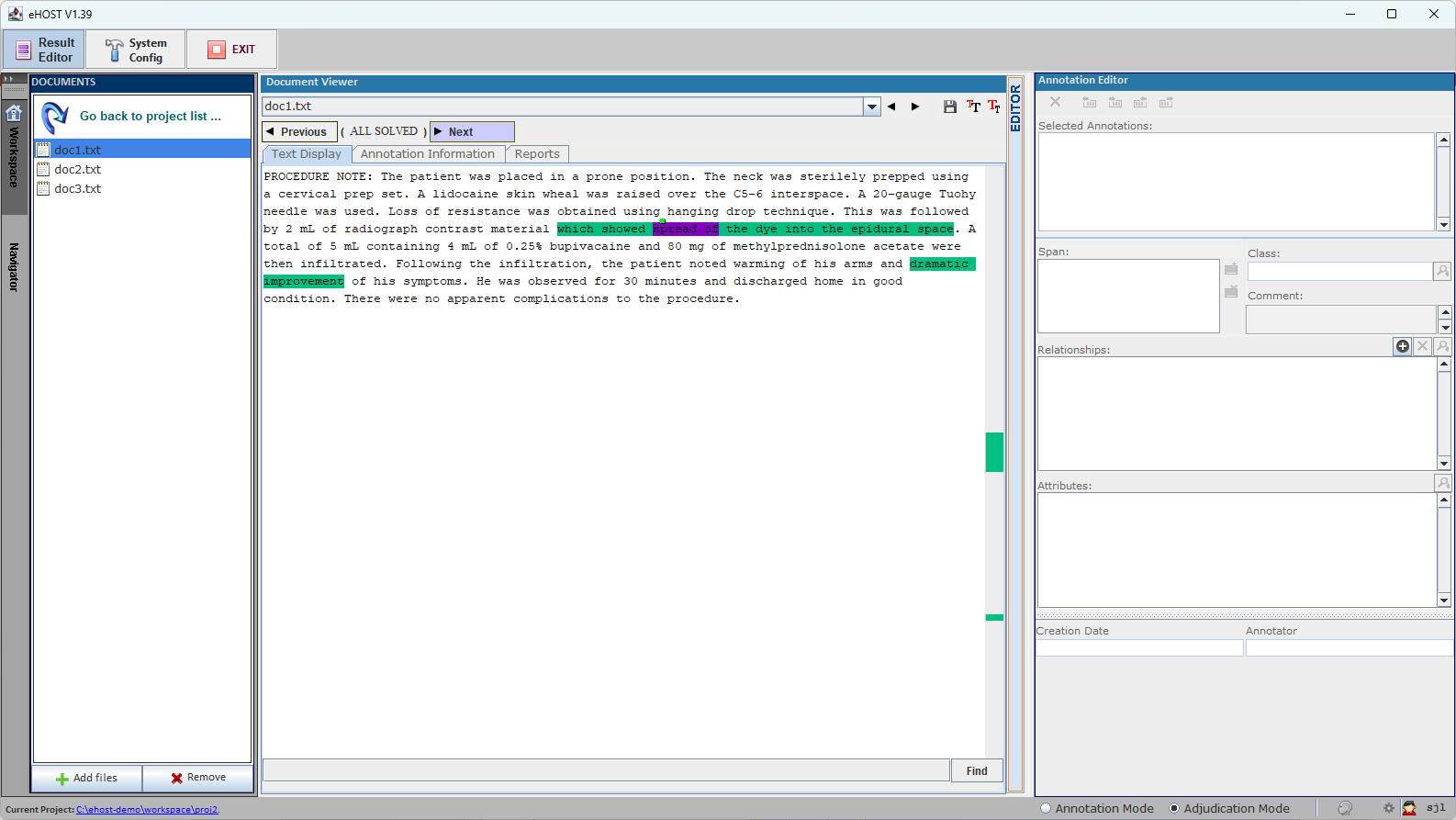
| Adjudicate | Step through disagreements in Adjudication Mode and accept, edit or reject each one to build a gold standard. Adjudication work is saved separately from the annotators’ original files and can be paused and resumed. |
| Automate | Pre-annotate with dictionaries or regular expressions, run the ConText/NegEx algorithms, export annotations to Excel, and drive eHOST from a browser or script through its built-in RESTful server. |
A typical project
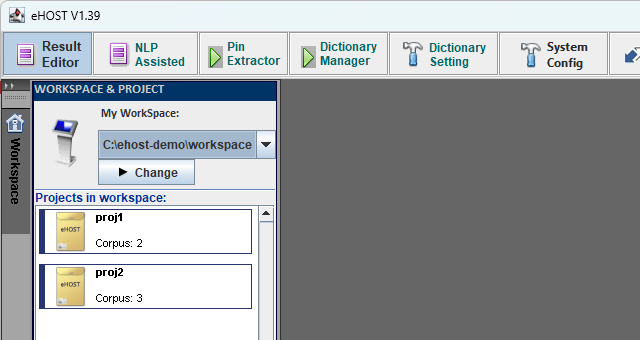
- Pick a workspace and create a project — 1.3 Assign Workspace and Project
- Load your documents into the project corpus — 1.4 Load Documents
- Define the schema: classes, attributes and relationships — 1.5.1 Define Classes
- Annotate and save — 1.6 Create Annotations
- Review and curate what has been annotated — 3.1 Annotation Review and Curation
- Measure agreement between annotators — 3.5 IAA Reports
- Adjudicate the disagreements into a gold standard — 3.6 Adjudication Mode
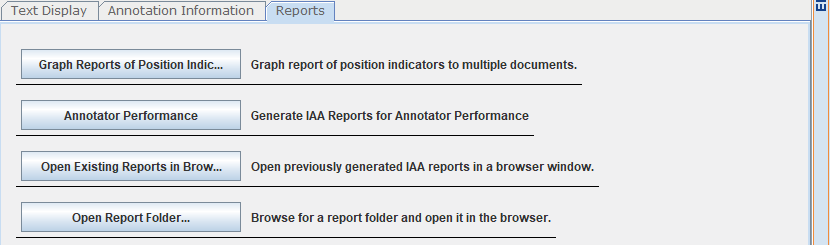
Reports are generated from the Reports tab of the Document Viewer:
Highlights in 1.39
See the full change log for details.
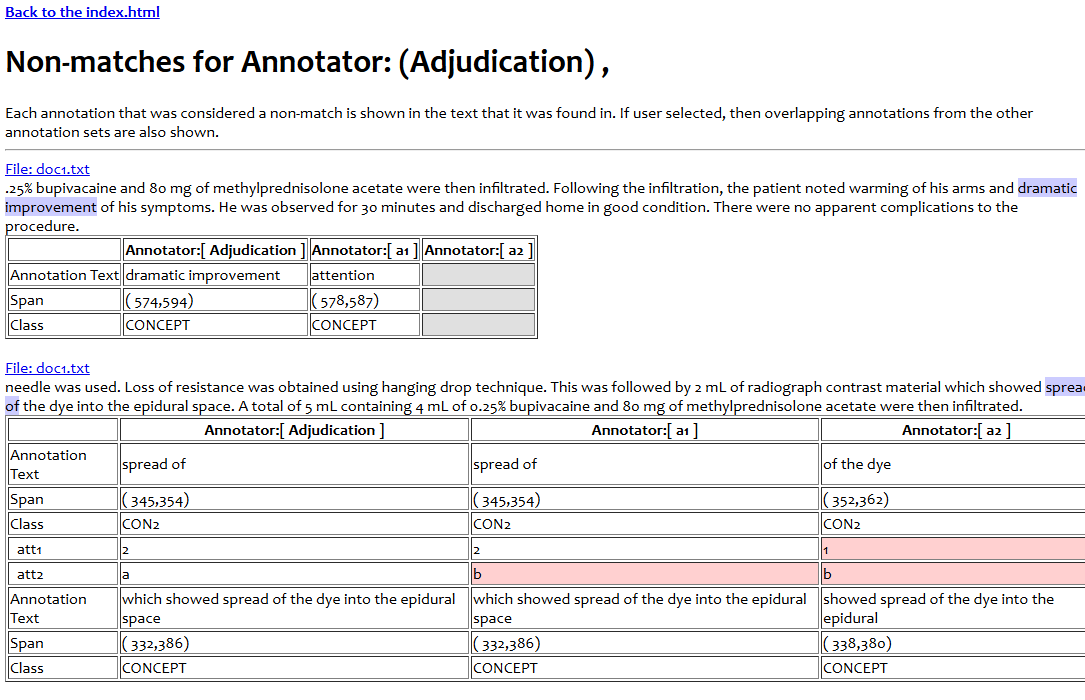
Adjudication comparison inside IAA reports
If the project already contains adjudicated annotations, the IAA report automatically loads them as an extra annotator called Adjudication and adds a section comparing every annotator against that gold standard. Attributes are compared row by row, and differing values are highlighted.
More: 3.5 IAA Reports
Adjudication you can pause, resume and restart safely
Adjudication state is stored in the project’s adjudication/ folder, so it survives closing eHOST.
Re-entering Adjudication Mode asks whether to continue, and starting over requires confirming an
explicit warning first.
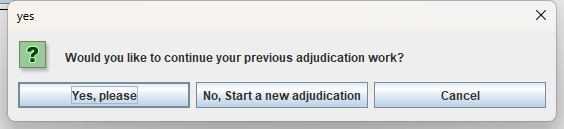
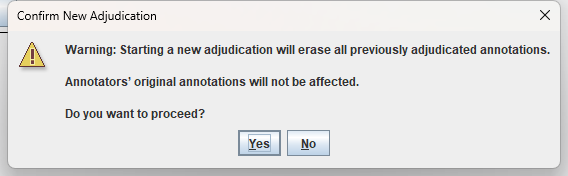
eHOST also prompts you to save before switching between Annotation and Adjudication Mode, so mode switches can no longer silently discard work.
More: 3.6.1 Resume or Restart Adjudication · 3.6.2 Adjudication Data Storage
Reports served over HTTP, for shared installations
Reports are opened through eHOST’s own web server instead of file:// URIs. Every link inside a report
is relative, so when several people share one eHOST installation each person’s clicks drive their own
eHOST instance. A new Open Report Folder… button opens a report from any location on disk.
More: 3.7 Viewing and Sharing Reports · RESTful Server Guide
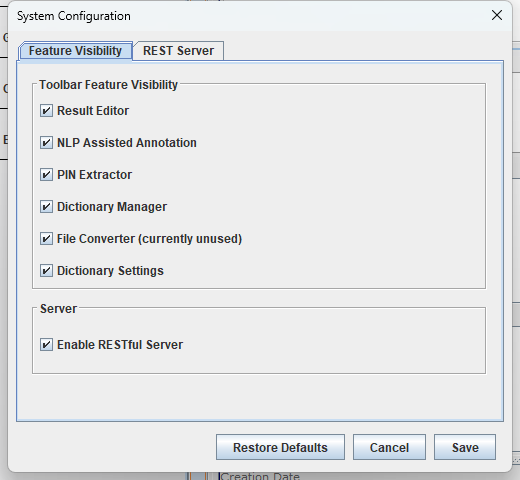
System Configuration dialog
Settings that used to require hand-editing eHOST.sys and application.properties can now be changed
from the toolbar’s System Config button — which toolbar features are visible, whether the RESTful
server runs, the server address, port and logging levels, and how annotation attributes are ordered
and compared on screen.
More: 2.8 System Configuration
Quick start
1. Install Java. eHOST needs Java 8 or newer — see 1.1 Prerequisites.
2. Get eHOST. Download eHOST-<version>.zip from the
releases page and unzip it anywhere.
3. Run it.
java -jar eHOST.jar
The bundled run.bat (Windows) and run (macOS/Linux) scripts do the same thing. You can also point
eHOST at a specific workspace or configuration folder:
java -jar eHOST.jar -w /path/to/workspace -c /path/to/config
See 1.2 Launching eHOST for all command line options and for where eHOST looks for its configuration files.
Building from source instead? eHOST is a Maven project that must be built with JDK 8:
bash script/mvn_install_jar.sh   # script\mvn_install_jar.bat on Windows
mvn clean package                # produces target/deploy/eHOST.jar
Documentation
1. Installation and Quick Start
- 1.1 Prerequisites
- 1.2 Launching eHOST
- 1.3 Assign Workspace and Project
- 1.4 Load Documents
- 1.5 Create Annotation Schema
- 1.6 Create Annotations
- 1.7 Save Annotations
2. Basic Features
- 2.1 Workspace and Project
- 2.2 Viewer
- 2.3 Editor
- 2.4 Import Annotations
- 2.5 Annotation Operations
- 2.6 Assign Annotator
- 2.7 Save Annotations
- 2.8 System Configuration
3. Advanced Features
- 3.1 Annotation Review and Curation
- 3.2 Annotation Profile
- 3.3 Error Checking
- 3.4 Oracle (Annotations Like Me)
- 3.5 IAA Reports
- 3.6 Adjudication Mode
- 3.7 Viewing and Sharing Reports
4. Beyond Manual Annotation
- 4.1 Generate Pre-annotations using Custom Dictionary
- 4.2 Generate Pre-annotations using Regular Expression
- 4.3 ConTEXT algorithm
5. Glossary
Reference
- RESTful Server Guide — endpoints, port selection and multi-user deployment
- Change log
- Glossary
- Source code and issue tracker