3.7 Viewing and Sharing Reports
All eHOST reports (IAA reports, position indicator graphs) are HTML pages stored in the project’s
reports folder. eHOST serves them through its own built-in web server rather than opening them as
local files, so that the links inside a report always come back to your eHOST instance.
The Reports panel
In the Viewer panel, open the Reports tab:
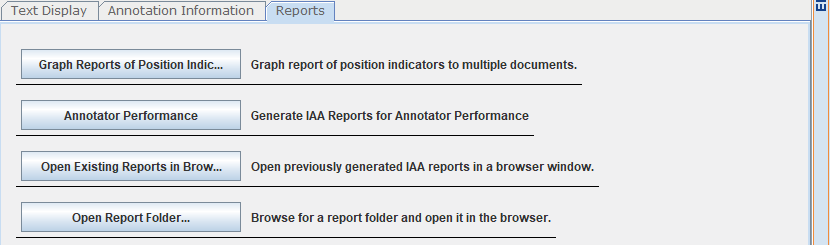
| Button | Description |
|---|---|
| Graph Reports of Position Indicators | Generates the position indicator graphs (see 3.2.1) |
| Annotator Performance | Generates the IAA report (see 3.5) |
| Open Existing Reports in Browser | Opens the current project’s report in your browser |
| Open Report Folder… | Browse to any report folder on disk and open it in your browser |
How reports open
Clicking Open Existing Reports in Browser launches your browser at
http://127.0.0.1:{your_port}/reports/index.html, where {your_port} is the port your own eHOST
instance is running on. Every navigation link inside the report is relative, so clicking a document
link in the report drives your own eHOST instance - for example jumping to the document and annotation
you clicked on.
Multiple users on one machine
When several people share one eHOST installation (for example over Remote Desktop on a Windows server), each user’s eHOST runs on its own port: the second instance to start finds the configured port busy and moves on to the next one (8010, 8011, 8012, …). Because reports are served by each user’s own instance and all internal links are relative, two people can open the same report folder at the same time and each one’s links will control their own eHOST session.
Opening a report from another location
Use Open Report Folder… to pick any folder containing an index.html report - for example a
report shared by a colleague or an older report archived elsewhere. eHOST serves the selected folder
and opens it in the browser. The folder change takes effect immediately; there is no need to restart
eHOST.